How to use WEEKDAY function to get last Friday in Google Sheets

As I manage my stock investment portfolio in Google Sheets, I need to see its evolution over time, for example, in the last year. However, the computation for daily evolution is resource-consuming and might cause performance issues for the spreadsheet. As an alternative, I compute only the weekly evolution of the investment portfolio for the last year. For each week, I compute only the portfolio's value at the end of the Friday. For that, I need a Google Sheets formula to return the last Friday for a given date. This post explains how I do that with the WEEKDAY formula in Google Sheets.
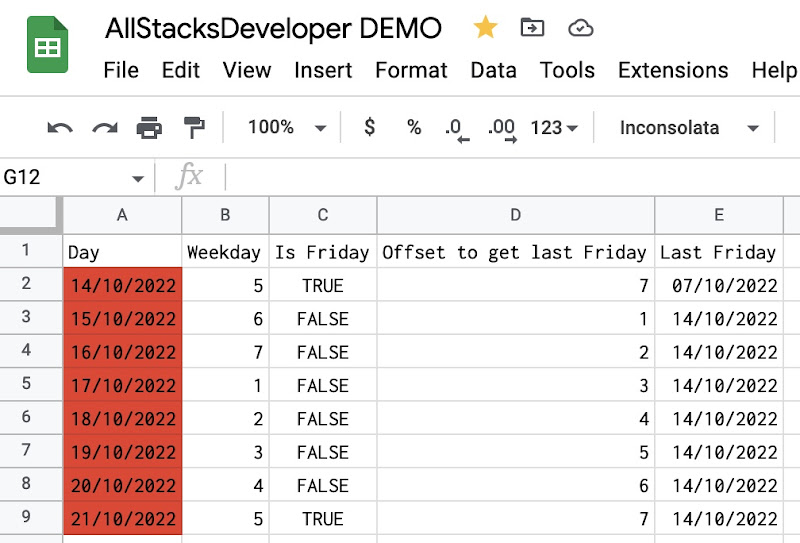
Use WEEKDAY function in Google Sheets to find last Friday

Table of Contents

Concept

To find the last Friday from a date, I need to determine how many days I need to subtract from that date.

  • If the date is Saturday, the last Friday is 1 day before it.
  • If the date is Sunday, the last Friday is 2 days before it.
  • If the date is Monday, the last Friday is 3 days before it.
  • If the date is Tuesday, the last Friday is 4 days before it.
  • If the date is Wednesday, the last Friday is 5 days before it.
  • If the date is Thursday, the last Friday is 6 days before it.
  • If the date is Friday, the last Friday is 7 days before it.

In Google Sheets, the WEEKDAY function returns a number representing the day of the week for a given date. More specifically, if the type is 2, Monday is the first day of the week, and its value is 1, while Sunday is the last day of the week, and its value is 7.

I made a small schema below to explain how to calculate the number of days to subtract based on the WEEKDAY function:

How to use WEEKDAY function in Google Sheets

Formula and demo

Here is the final formula that can be applied on any date to find out the last Friday.

=TODAY()-IF(WEEKDAY(TODAY(),2)>5,WEEKDAY(TODAY(),2)-5,2+WEEKDAY(TODAY(),2))

Conclusion

In the next posts, I will explain how to compute the weekly evolution of a stock investment portfolio in Google Sheets. The formula to find last Friday for a given date presented in this post will be useful.

Disclaimer

The post is only for informational purposes and not for trading purposes or financial advice.

Feedback

If you have any feedback, question, or request please:

Support this blog

If you value my work, please support me with as little as a cup of coffee! I appreciate it. Thank you!

Share with your friends

If you read it this far, I hope you have enjoyed the content of this post. If you like it, share it with your friends!

Comments

Popular posts

Compute cost basis of stocks with FIFO method in Google Sheets

Compute cost basis of stocks with FIFO method in Google Sheets

After selling a portion of my holdings in a stock, the cost basis for the remain shares of that stock in my portfolio is not simply the sum of all transactions. When selling, I need to decide which shares I want to sell. One of the most common accounting methods is FIFO (first in, first out), meaning that the shares I bought earliest will be the shares I sell first. As you might already know, I use Google Sheets extensively to manage my stock portfolio investment, but, at the moment of writing this post, I find that Google Sheets does not provide a built-in formula for FIFO. Luckily, with lots of effort, I succeeded in building my own FIFO solution in Google Sheets, and I want to share it on this blog. In this post, I explain how to implement FIFO method in Google Sheets to compute cost basis in stocks investing.
Stock Correlation Analysis With Google Sheets

Stock Correlation Analysis With Google Sheets

Correlation is a statistical relationship that measures how related the movement of one variable is compared to another variable. For example, stock prices fluctuate over time and are correlated accordingly or inversely to one another. Understanding stock correlation and being able to perform analysis are very helpful in managing a stock portfolio investment. In this post, I explain in details how to perform correlation analysis among stocks in Google Sheets.
Use SPARKLINE to create 52-week range price indicator chart for stocks in Google Sheets

Use SPARKLINE to create 52-week range price indicator chart for stocks in Google Sheets

The 52-week range price indicator chart shows the relative position of the current price compared to the 52-week low and the 52-week high price. It visualizes whether the current price is closer to the 52-week low or the 52-week high price. In this post, I explain how to create a 52-week range price indicator chart for stocks by using the SPARKLINE function and the GOOGLEFINANCE function in Google Sheets.
Create personal stock portfolio tracker with Google Sheets and Google Data Studio

Create personal stock portfolio tracker with Google Sheets and Google Data Studio

I have been investing in the stock market for a while. I was looking for a software tool that could help me better manage my portfolio, but, could not find one that satisfied my needs. One day, I discovered that the Google Sheets application has a built-in function called GOOGLEFINANCE which fetches current or historical prices of stocks into spreadsheets. So I thought it is totally possible to build my own personal portfolio tracker with Google Sheets. I can register my transactions in a sheet and use the pivot table, built-in functions such as GOOGLEFINANCE, and Apps Script to automate the computation for daily evolutions of my portfolio as well as the current position for each stock in my portfolio. I then drew some sort of charts within the spreadsheet to have some visual ideas of my portfolio. However, I quickly found it inconvenient to have the charts overlapped the table and to switch back and forth among sheets in the spreadsheet. That's when I came to know the existen...
Compute daily evolutions of a stock portfolio with Google Sheets and Apps Script

Compute daily evolutions of a stock portfolio with Google Sheets and Apps Script

When it comes to investment, it is not only important to know the up-to-date state of portfolio but also to track its evolution day by day. We need to know on a specific day, how much money has been invested in the portfolio, the current market value of owned shares, the available cash and the current profit. Visualizing those historical data points on a time-based graph helps us to identify which transactions were good and which were bad. This post shows how to compute automatically those historical data points by using data in Transactions sheet and the built-in GOOGLEFINANCE function of Google Sheets. A sample spreadsheet can be found in this post Demo stock portfolio tracker with Google Sheets . You can take a look at the sample spreadsheet to have an idea of how the data is organized and related. It is possible to make a copy of the spreadsheet to study it thoroughly.
Stock Portfolio Tracker Dashboard With Google Data Studio

Stock Portfolio Tracker Dashboard With Google Data Studio

In the series of building personal stock portfolio tracker, we have learned how to use Google Sheets to register transactions . We have then used the pivot table and GOOGLEFINANCE function to compute the latest position of the stock portfolio . We have made a step further to use Apps Scripts to compute automatically and daily the stock portfolio's evolution . However, after all, we have several tables of data as the result which do not tell any story yet. We need to present those data in graphs to understand the portfolio's performance and make improvements accordingly. We can effectively plot graphs in different aspects directly in Google Sheets as it provides many charting tools. However, in my experience, having charts and data in the same spreadsheet is not very convenient because charts and tables tend to overlap each other and of lack of interactivity. We should have a dedicated dashboard to have an overview of the stock portfolio and we can do it greatly with Google Data...
Create a dividend income tracker with Google Sheets by simply using pivot tables

Create a dividend income tracker with Google Sheets by simply using pivot tables

As my investment strategy is to buy stocks that pay regular and stable dividends during a long-term period, I need to monitor my dividends income by stocks, by months, and by years, so that I can answer quickly and exactly the following questions: How much dividend did I receive on a given month and a given year? How much dividend did I receive for a given stock in a given year? Have a given stock's annual dividend per share kept increasing gradually over years? Have a given stock's annual dividend yield been stable over years? In this post, I explain how to create a dividend tracker for a stock investment portfolio with Google Sheets by simply using pivot tables.
GOOGLEFINANCE Best Practices

GOOGLEFINANCE Best Practices

Anyone using Google Sheets to manage stock portfolio investment must know how to use the GOOGLEFINANCE function to fetch historical prices of stocks. As I have used it extensively to manage my stock portfolio investment in Google Sheets , I have learned several best practices for using the GOOGLEFINANCE function that I would like to share in this post.
How to copy data in Google Sheets as HTML table

How to copy data in Google Sheets as HTML table

I often need to extract some sample data in Google Sheets and present it in my blog as an HTML table. However, when copying a selected range in Google Sheets and paste it outside the Google Sheets, I only get plain text. In this post, I explain how to copy data in Google Sheets as an HTML table by writing a small Apps Script program.